Some of the best ideas for a widget come from the people using it. Mya runs Home Assistant and a home server, and pushes a handful of numbers from both to WidgetDash with a few lines of script. Their widgets show something every setup can borrow: numbers that change color on their own, with no extra code.
They shared these screenshots with us to use, and we think they make the idea clearer than any demo.
Two widgets, each with its own sources
Mya keeps two Large widgets on the Home Screen. One is for the house: Home Assistant maintenance (pending updates, the last backup) and home status (temperature, alarm, open doors). The other is for monitoring and media: two debrid services, plus their photo library and what they last watched.
Each widget shows only the sources picked for it. Long-press the widget, tap Edit Widget, choose a Source, and add more under More Sources.
The multi-source option has made a big difference. I can now pick exactly which sources go into each widget instead of cramming everything into one.
Subscription days that go yellow, then red
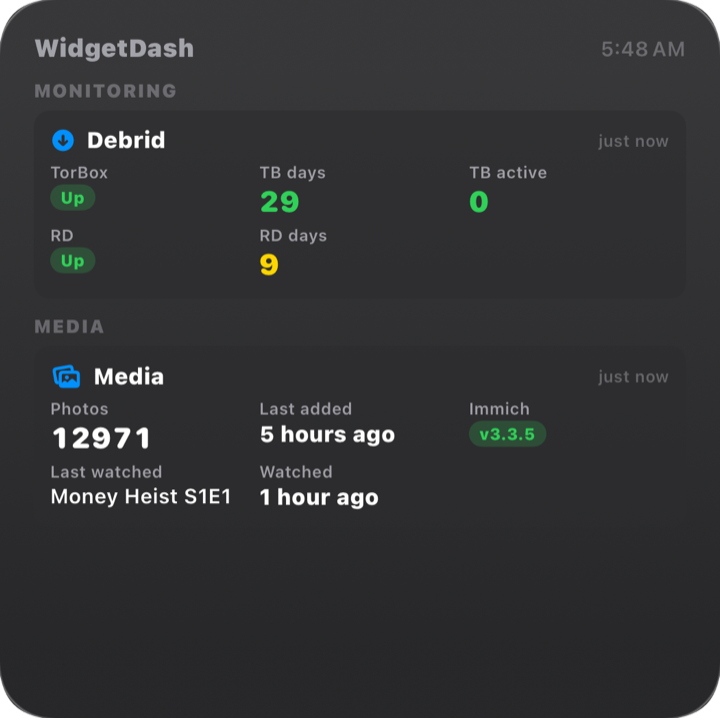
The Monitoring card tracks two debrid subscriptions: whether each service is up, and how many days are left. Earlier in the month, RD days was green. Below 15 it turned yellow:
At 6 days left, it turned red:
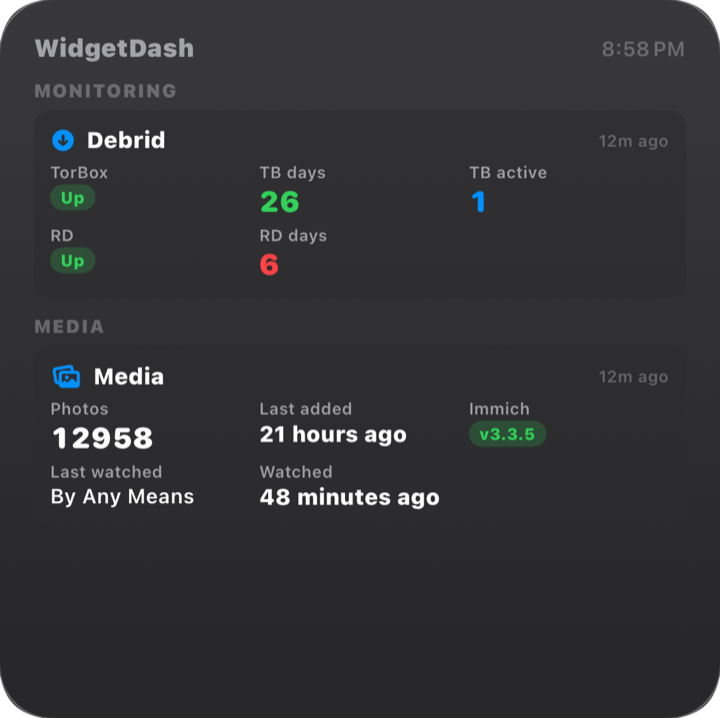
The script never sends a color. It sends the number of days, and a color rule set once does the rest. Rules are checked every time the widget reads, so the color follows the number without any extra pushes.
The color rule behind it
A push like this produces a card of the same shape (the values are examples):
curl -X PUT https://api.widgetdash.app/api/v1/data/debrid \
  -H "Authorization: Bearer YOUR_WRITE_KEY" \
  -H "Content-Type: application/json" \
  -d '{
    "display_name": "Debrid",
    "category": "Monitoring",
    "metrics": [
      { "label": "TorBox", "value": "Up", "type": "status" },
      { "label": "TB days", "value": "26", "type": "number" },
      { "label": "RD", "value": "Up", "type": "status" },
      { "label": "RD days", "value": "6", "type": "number" }
    ],
    "color_rules": {
      "RD days": [ { "below": 7, "color": "red" }, { "below": 15, "color": "yellow" }, { "color": "green" } ],
      "TB days": [ { "below": 7, "color": "red" }, { "below": 15, "color": "yellow" }, { "color": "green" } ],
      "TorBox": [ { "equals": "Up", "color": "green" }, { "color": "red" } ],
      "RD": [ { "equals": "Up", "color": "green" }, { "color": "red" } ]
    }
  }'
The first rule that matches sets the color, and a rule with only a color is the default. After the first push, later pushes can leave color_rules out and the server keeps them.
Times that count up by themselves
On the Media card, Last added and Watched are timestamp metrics. The script sends the time something happened, and the widget shows "21 hours ago" or "48 minutes ago" and keeps counting between refreshes. The house widget does the same for the last Home Assistant backup, with a rule that would turn it red if a backup ever goes missing:
"color_rules": { "Last backup": [ { "older_than": "24h", "color": "red" }, { "color": "green" } ] }The Immich badge is a status value too: green when the photo server is up to date, yellow when a newer release is out.
What to take from it
- Send facts, not colors. Push the number of days or the time of the last backup, and let rules decide what is good or bad.
- Give each widget one job. A house widget and a monitoring widget are easier to read than one widget with everything.
- Use times for anything that can go stale. A backup time that counts up warns you even when the script that sends it has stopped.
If you want to try the same thing, What makes a metric glanceable covers how to choose the numbers, and the setup guide has the full list of metric types and color rules. You can also see Mya's widgets on the home page.
FAQ
Do I need Home Assistant for this?
No. Anything that can send an HTTP request works: a Home Assistant automation, a cron job on a home server, or an Apple Shortcut.
Do color rules cost extra?
No. Color rules, timestamps and status badges work on the free plan, which covers 5 sources.
Can a rule look at a status instead of a number?
Yes. equals compares text without regard to case, so a rule can turn "Down" red and anything else green.