Know when to leave: a live bus and train card on your iPhone
Tap a shortcut as you get ready, and a card on your Lock Screen and Dynamic Island counts down to when you should leave. It picks the bus that makes your train, follows the bus live and the train's delay, then counts down to the bus, the train and arriving. It ends by itself when you arrive. For buses and Israel Railways trains in Israel.
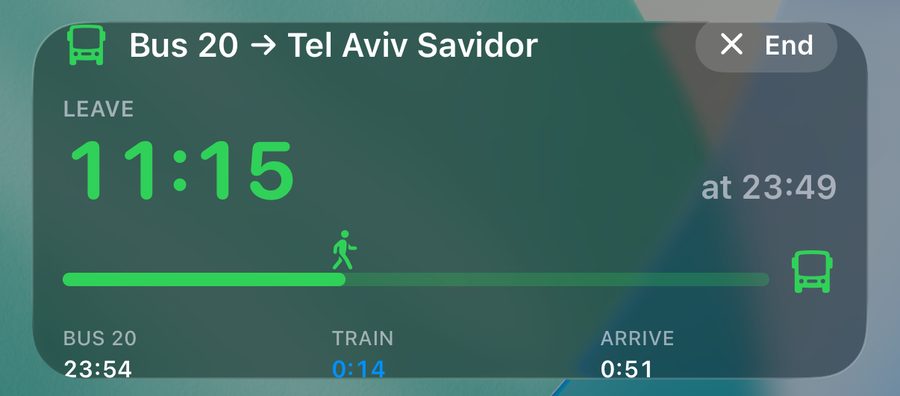
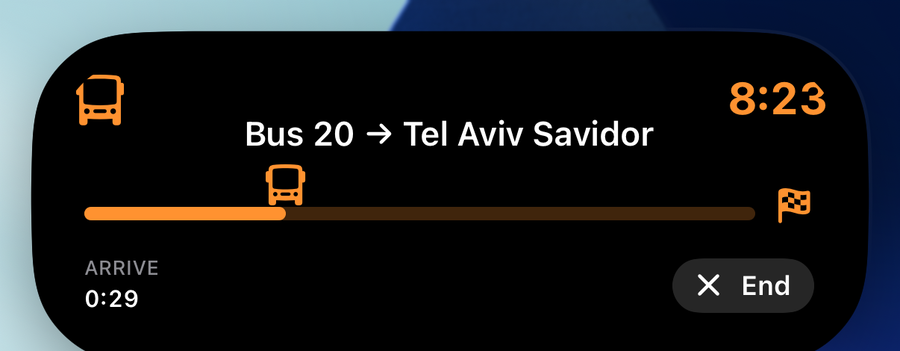
Setup takes about 5 minutes. This page walks you through it and keeps your place: each step turns green when it's done.
1 Get the app
Install WidgetDash from the App Store (iPhone, iOS 17.6 or later; the bus and train card needs version 1.10 or later) and open it once.
2 Sign in, and connect your iPhone
Create a free account or log in with your email and password. Then come back to this page; it picks up your account by itself.
Connect the iPhone app to this account, so the card goes to your phone: on your iPhone, tap Open in WidgetDash, or scan the code with the iPhone camera. Already connected? Skip this.
The link holds your key. Don't share it or post a screenshot of it.
3 Pro, for the live card
The live card is a Live Activity, which is part of WidgetDash Pro ($4.90 a month or $29.90 a year). You can save trips on the free plan, but the card only starts on Pro. Upgrade on the Billing page.
4 Save your trips
A trip is a bus, a train, or a bus to the train. Most people save two: to work, and back home. The way back usually starts at a different stop (across the street), so save it as its own trip.
Your trips
- Sign in to see your trips.
5 Add the shortcuts
Open this page in Safari on your iPhone (not inside Mail or another app), then tap each button below and add the shortcut:
- Start trip: add it once for each trip. When it asks, paste your read key and type the trip's name exactly as you saved it. Then rename the shortcut to the trip's name, for example "To work", so you can also say "Hey Siri, to work".
- Stop trip: add it once. It ends the card.
Sign in to see it.
6 Try it
Start a trip from here to see the card now. Next time, run the shortcut.
Until it's time to leave, the card counts down to Leave and picks again if you miss a bus. At leave time it follows the bus and train you're taking, then ends 2 minutes after you arrive. Tap End on the card, or run Stop trip, to end it sooner.
Good to know
- Where the times come from: bus timetables from Open Bus (the Public Knowledge Workshop), live bus positions from the Ministry of Transport's feed through curlbus, and trains with their delays from Israel Railways.
- What's stored: the stops, line and stations you choose, and the trip's name. The transit services only get stop and station numbers, never who you are. See the privacy policy.
- On the free plan, each trip uses one of your 5 sources and shows "Not tracking" on a widget; the live card needs Pro.