See It in Action
Home Screen widgets, Lock Screen widgets, real-time Live Activities, and a setup flow that takes seconds.
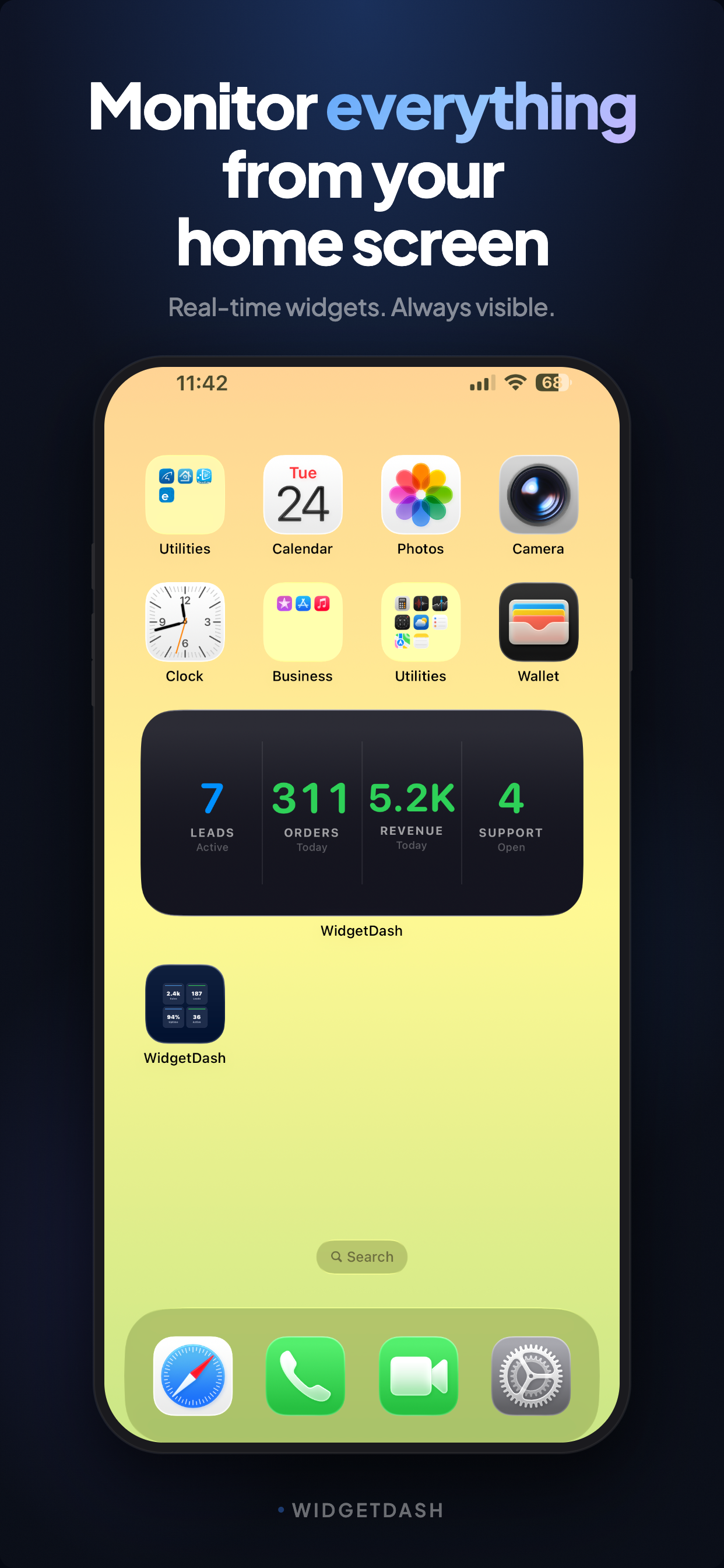
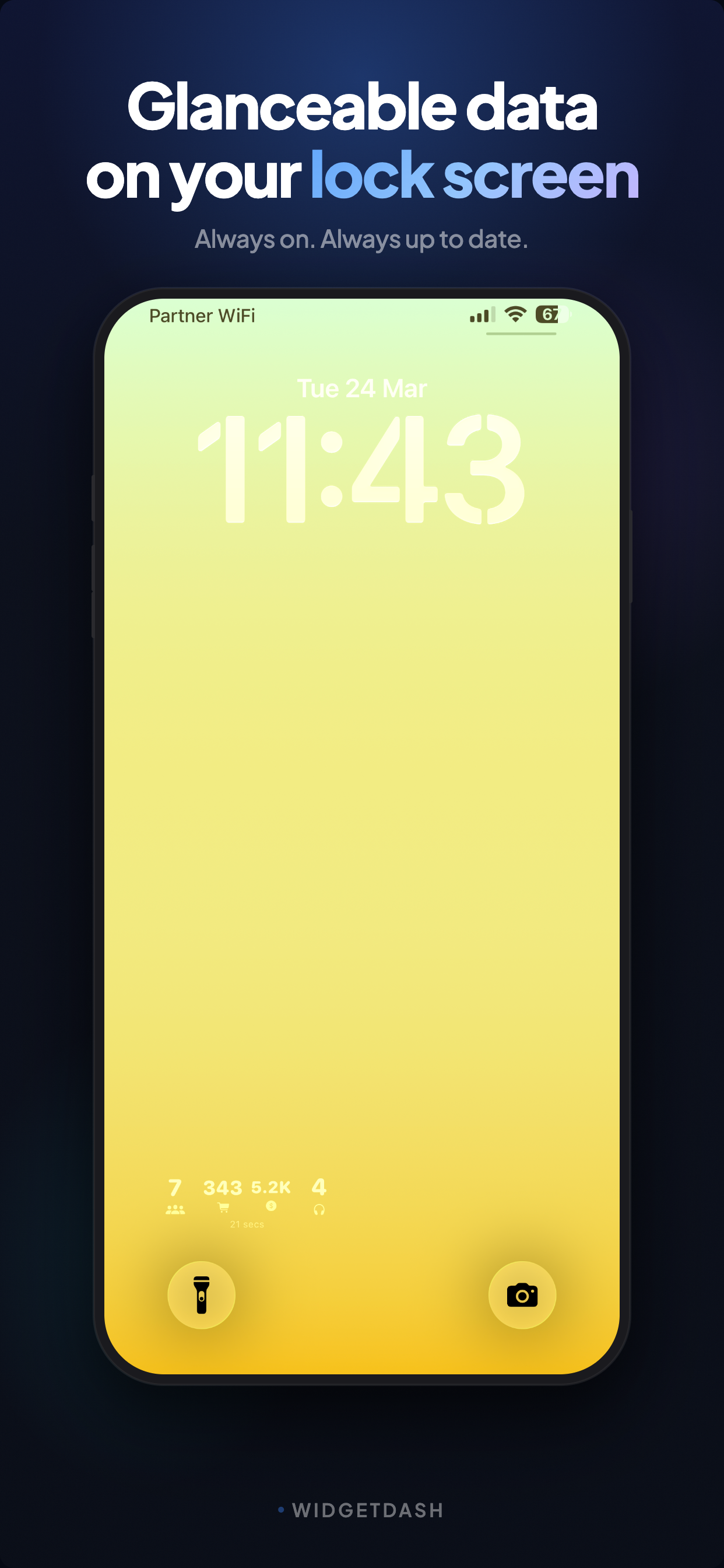
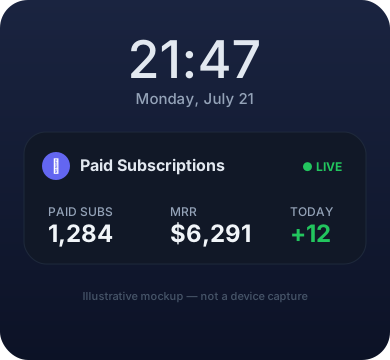
See your numbers on your iPhone. Any source.
Revenue, signups, server status, crypto, sales, habits: push any number from any service to your iPhone Home Screen, Lock Screen or Dynamic Island with one HTTP request, and stay updated without opening a dashboard. The server does not care what you push. You define it.
Home Screen widgets, Lock Screen widgets, real-time Live Activities, and a setup flow that takes seconds.
Three steps. Nothing to learn.
Register with a single API call. You get a read key and a write key in return.
Write a small collector that pulls numbers from your service and sends them to the API.
Your data shows up on the widget automatically. Add it to your Home Screen and you are done. On Pro you can even go live: real-time updates on the Lock Screen and Dynamic Island.
Decoupled by design. Easy to extend.
The server is fully generic. It stores whatever you push. Collectors are independent scripts you write and run yourself, so anyone can build one for any service.
Live in minutes. Three commands.
# Create an account and get your API keys
curl -X POST https://api.widgetdash.app/api/v1/users \
  -H "Content-Type: application/json" \
  -d '{"name": "your-name"}'
curl -X PUT https://api.widgetdash.app/api/v1/data/my-source \
  -H "Authorization: Bearer YOUR_WRITE_KEY" \
  -H "Content-Type: application/json" \
  -d '{
    "display_name": "My Service",
    "icon": "chart.bar.fill",
    "category": "monitoring",
    "metrics": [
      {"label": "Users Online", "value": "42", "type": "number", "color": "green"},
      {"label": "Status", "value": "Healthy", "type": "status", "color": "green"}
    ]
  }'
curl https://api.widgetdash.app/api/v1/widget \
  -H "Authorization: Bearer YOUR_READ_KEY"
Every endpoint, in one place.
| Method | Endpoint | Auth | Description |
|---|---|---|---|
| POST | /api/v1/users |
None | Create account, get API keys |
| GET | /api/v1/users/me |
Read | Get account info |
| PUT | /api/v1/data/{source_key} |
Write | Push data from collector |
| GET | /api/v1/widget |
Read | Get all widget data |
| GET | /api/v1/data/{source_key} |
Read | Get specific source data |
| POST | /api/v1/sources |
Write | Register data source |
| GET | /api/v1/sources |
Read | List data sources |
| DELETE | /api/v1/sources/{source_key} |
Write | Delete data source |
| GET | /health |
None | Health check |
| GET | /api/v1/version |
None | Version info |
Every metric carries a type. The type decides how the widget renders it.
A large, bold number. Use it for counts, totals, and headline figures.
A plain string. Use it for labels, names, descriptions, or any short value.
A colored badge. Ideal for health checks, states, and alerts.
A bar for values from 0-100. Great for utilization, quotas, and completion.
A collector is any script that pushes data to WidgetDash on a schedule.
import httpx, os, time

API_KEY = os.environ["WIDGET_API_KEY"]
SERVER = "https://api.widgetdash.app"

while True:
    # Fetch your data (replace with your own logic)
    users_online = get_users_count()

    httpx.put(f"{SERVER}/api/v1/data/my-app",
        headers={"Authorization": f"Bearer {API_KEY}"},
        json={
            "display_name": "My App",
            "icon": "person.3.fill",
            "category": "app",
            "metrics": [
                {"label": "Online", "value": str(users_online), "type": "number", "color": "green"}
            ]
        })
    time.sleep(60)
Start free. Upgrade only when you need more.
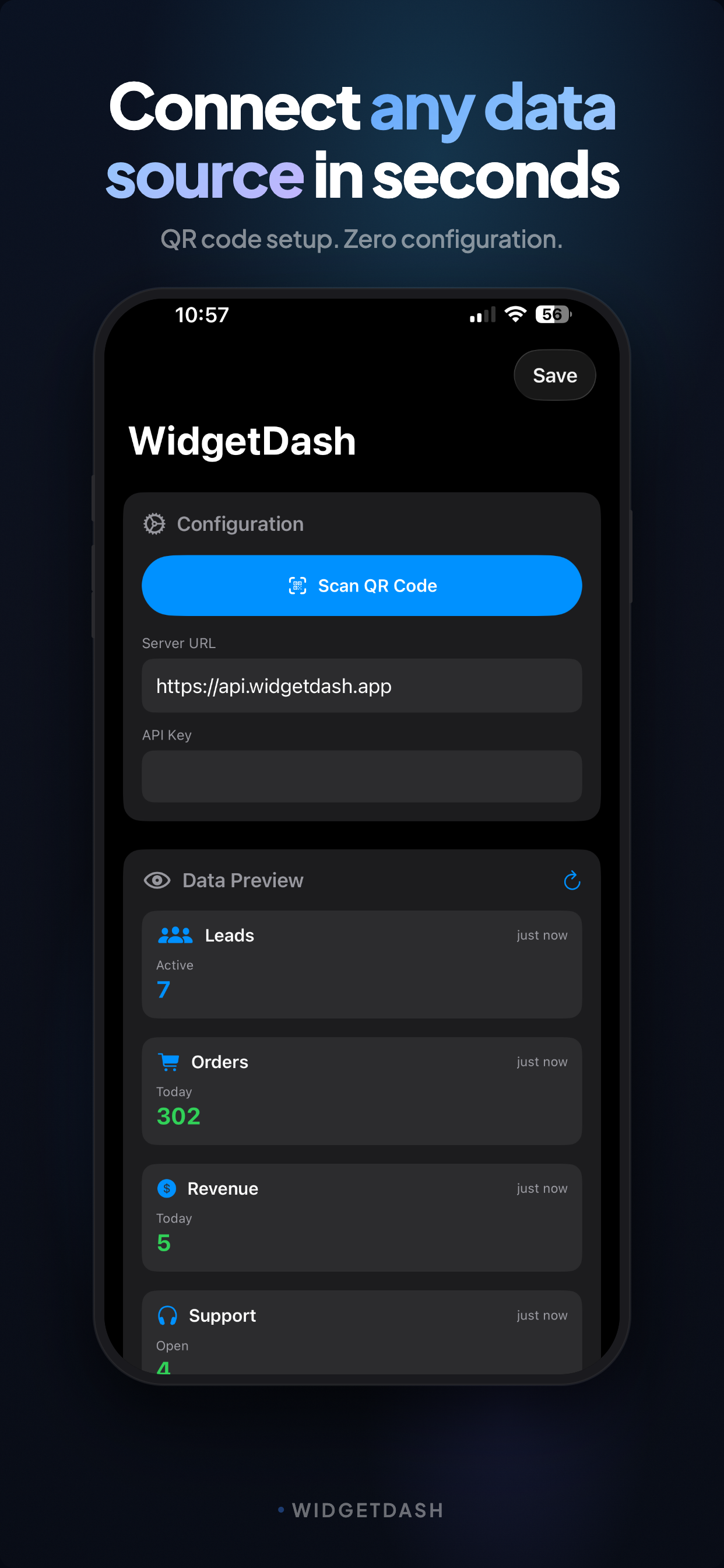
Scan a QR code and the app configures itself.
Register through the API and get your read and write keys.
Open the WidgetDash app and scan the code below, or the one on your dashboard.
The settings apply at once. Your widgets start showing data right away.
Set up the app from your phone's browser in one tap.
Reading this on your iPhone? Tap the "Open in App" button next to the QR code above. The deep link passes your server URL and read key straight into the WidgetDash app, so you type nothing.
The deep link format is:
widgetdash://setup?server=https://api.widgetdash.app&key=YOUR_READ_KEY
Your data at a glance, right on your Home Screen.
Enter your server URL and read API key in the app settings.
Long-press your Home Screen and add the WidgetDash widget. It comes in small, medium, and large sizes.
Keeping your numbers in view, answered.
Install the free WidgetDash app, create an account at widgetdash.app, and send your number with one HTTP request (curl, Python, Zapier, n8n, a cron job, anything that can call an API). Then add the WidgetDash widget to your Home Screen or Lock Screen. The number updates automatically every time you push a new value.
Put them where you already look: your iPhone Home Screen, Lock Screen, or a Live Activity. WidgetDash turns any metric you push (revenue, signups, server status, crypto, sales, habits) into a native iOS widget, so you see the latest value every time you unlock your phone.
Yes. WidgetDash is source-agnostic. You compute the number wherever it lives and PUT it to https://api.widgetdash.app/api/v1/data/{source_key} with your write key. There is no SDK and WidgetDash never connects to your systems.
Not necessarily. Built-in sources (Bitcoin and Ethereum price, crypto market, fear & greed index, currency rates and more) can be added from the dashboard with no code. For your own numbers, a single curl command or a no-code tool like Zapier, Make or n8n with an HTTP step is enough.
Yes. WidgetDash supports Home Screen widgets in small, medium and large sizes, Lock Screen widgets, and on Pro, real-time Live Activities on the Lock Screen and Dynamic Island.
Free forever for up to 5 data sources with a 15-minute refresh. Pro is $4.90 per month or $29.90 per year for unlimited sources, a 5-minute refresh and Live Activities.
Yes. Anything that can make an HTTP request can update your widget, including AI agents and scripts. See widgetdash.app/llms.txt for a machine-readable summary of the API.
More: How to see your numbers on your iPhone · Use cases · WidgetDash vs alternatives
Last updated: March 2026
By accessing or using the WidgetDash service ("Service"), you agree to be bound by these Terms of Service ("Terms"). If you do not agree to these Terms, you may not use the Service.
WidgetDash is provided as a free, open platform for pushing and retrieving widget data via an API. There are no guarantees of uptime, availability, or continued operation of the Service.
Users retain ownership of all data they push to the Service. The Service stores only what users explicitly submit via the API. Data may be deleted without notice at the sole discretion of the service provider.
THE SERVICE IS PROVIDED "AS IS" AND "AS AVAILABLE" WITHOUT WARRANTY OF ANY KIND, EXPRESS OR IMPLIED, INCLUDING BUT NOT LIMITED TO THE WARRANTIES OF MERCHANTABILITY, FITNESS FOR A PARTICULAR PURPOSE, AND NONINFRINGEMENT. THE SERVICE PROVIDER DOES NOT WARRANT THAT THE SERVICE WILL BE UNINTERRUPTED, SECURE, OR ERROR-FREE.
IN NO EVENT SHALL THE SERVICE PROVIDER, ITS OPERATORS, CONTRIBUTORS, OR AFFILIATES BE LIABLE FOR ANY INDIRECT, INCIDENTAL, SPECIAL, CONSEQUENTIAL, OR PUNITIVE DAMAGES, INCLUDING BUT NOT LIMITED TO LOSS OF PROFITS, DATA, USE, GOODWILL, OR OTHER INTANGIBLE LOSSES, RESULTING FROM (A) YOUR ACCESS TO OR USE OF OR INABILITY TO ACCESS OR USE THE SERVICE; (B) ANY CONDUCT OR CONTENT OF ANY THIRD PARTY ON THE SERVICE; (C) ANY CONTENT OBTAINED FROM THE SERVICE; (D) UNAUTHORIZED ACCESS, USE, OR ALTERATION OF YOUR TRANSMISSIONS OR CONTENT; (E) DATA LOSS OR CORRUPTION; (F) SECURITY BREACHES OR VULNERABILITIES. THE TOTAL LIABILITY OF THE SERVICE PROVIDER SHALL NOT EXCEED THE AMOUNT PAID BY YOU FOR USE OF THE SERVICE, WHICH IS ZERO FOR A FREE SERVICE.
You agree to indemnify, defend, and hold harmless the service provider, its operators, contributors, and affiliates from and against any and all claims, damages, obligations, losses, liabilities, costs, and expenses (including attorney's fees) arising from your use of the Service, your violation of these Terms, or your violation of any rights of a third party.
The service provider reserves the right to modify these Terms at any time without prior notice. Continued use of the Service after modifications constitutes acceptance of the revised Terms.
The service provider may terminate or suspend your access to the Service at any time, for any reason, with or without cause, and with or without notice. Upon termination, your right to use the Service ceases immediately.
These Terms shall be governed by and construed in accordance with applicable law, without regard to conflict of law principles.
If any provision of these Terms is held to be unenforceable or invalid, the remaining provisions shall continue in full force and effect.
This is a free service with no service level agreement (SLA). There are no guarantees regarding uptime, response time, throughput, or data durability.
The Service may impose rate limits on API usage at any time. Excessive or abusive use may result in throttling, temporary suspension, or permanent termination of access.
Users are solely responsible for keeping their API keys secure and confidential. The service provider is not liable for any unauthorized access, data loss, or damages resulting from compromised, leaked, or shared API keys.
Last updated: March 2026
We store only the data you explicitly push via the API. This includes: the user name you provide during registration, data source names, and the metric values you submit. No additional data is collected.
We do not collect personal information beyond what you voluntarily provide during registration (a name of your choosing). You are not required to use your real name.
No third-party trackers, no advertising SDKs, no cross-site tracking cookies. The website uses only our own privacy-friendly, first-party analytics (aggregate page views and product events); the iOS app collects nothing beyond the data you push.
We do not share, sell, rent, or distribute your data to any third parties under any circumstances.
Your data is stored for as long as your account exists. You can delete your data sources at any time via the API. Account deletion permanently removes all associated data.
We employ industry-standard security practices to protect your data, but we cannot guarantee absolute security. No method of electronic storage or transmission over the Internet is 100% secure. Use the Service at your own risk.
We do not guarantee data backups, data recovery, or data redundancy. You are responsible for maintaining your own copies of any important data.
For privacy concerns or questions about your data, contact the service administrator.
Read this before you use the Service.