If your commute is a bus to the train, the hard part isn't the ride. It's the five minutes before you leave. Is the bus on time? Will it make the 08:17? Should you run? Checking two apps at the door doesn't answer that.
WidgetDash now has a card that does. Tap a shortcut while you get ready, and a Live Activity on your Lock Screen and Dynamic Island counts down to the moment you should leave. It ends by itself when you arrive.
What the card shows
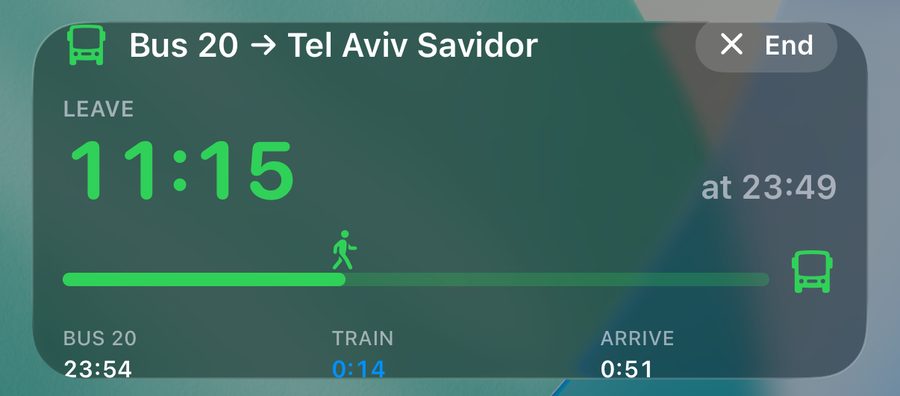
Before you leave:
- Leave, counting down live: green, then yellow at 5 minutes, then red.
- The bus it picked: the latest one that still gets you to the station in time for a train.
- The train, and when you arrive.
- A walker on a track, heading for the bus.
The plan is worked out again every 15 seconds. If the bus is running late, or you miss it, the card moves you to the next bus and the next train that still work.
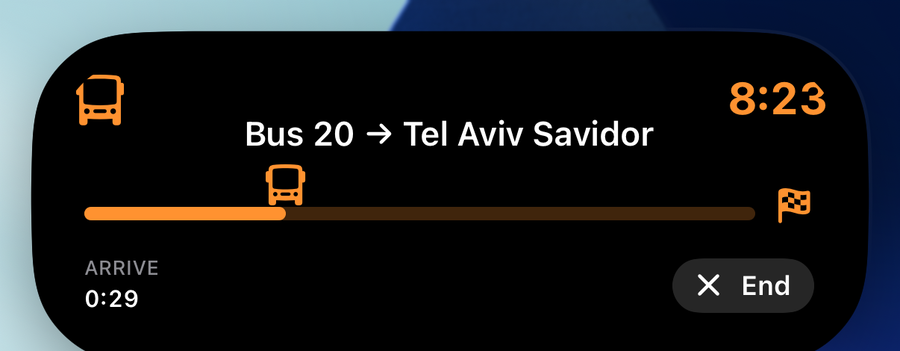
Once it's time to leave, the card commits to that bus and train and counts down to each step: the bus, then the train, then arriving. The walker turns into the bus and then the train, driving toward the finish flag. If the train is delayed, the countdown moves with it.
Where the times come from
- Bus timetables from Open Bus, the Public Knowledge Workshop's archive of the Ministry of Transport's data.
- Live bus positions from the Ministry's real-time feed, through curlbus. When the bus is live, its label drops "(sched.)".
- Train times and delays from Israel Railways.
The server asks for them only while your card is running, and only for your stops and stations.
One leg works too
A trip can be a bus, a train, or a bus to the train. "Going home" can be just the train: the card tells you when to leave the office to make the next one, delay included.
Set it up in about 5 minutes
The step-by-step setup walks you through it:
- Install WidgetDash and sign in.
- Save your trips: type the number on the bus stop sign, pick the line and where you get off, then pick the stations.
- Add two shortcuts, Start trip and Stop trip.
- Run Start trip, or let an automation run it when you leave home.
The card is a Live Activity, so it needs WidgetDash Pro. Saving trips works on the free plan.
What it knows about you
Only what you save: the stops, the line, the stations and the trip's name. The transit services get stop and station numbers, never who you are. While the card isn't running, nothing is checked at all.