You check Stripe twenty times a day. You open the analytics tab, wait for it to load, look at the number and close it, then do it again an hour later. There is a better place for the one or two numbers you actually care about, and it is already in your pocket. This guide shows how to push your SaaS metrics to an iPhone Home Screen widget with a single HTTP request, so the number you keep refreshing is simply there when you glance at your phone.
We will use WidgetDash for the widget, write one curl command to push a number, and then wire it to a real metric so it stays current on its own.
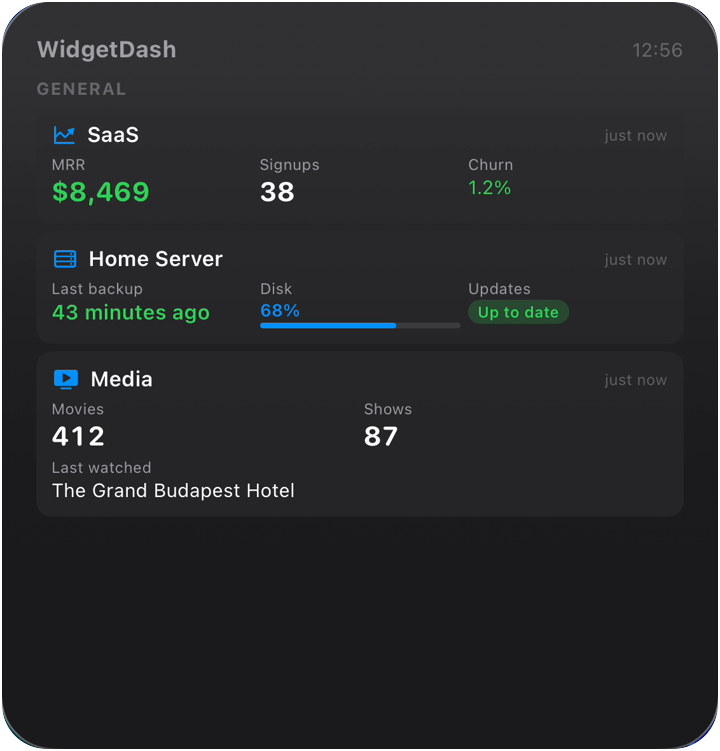
Why a widget beats another browser tab
A dashboard is a place you go. A widget is a thing you see. That difference matters more than it sounds.
When a metric lives behind a login and three clicks, you only look at it when you remember to. When it sits on your Home Screen, you take it in dozens of times a day without trying. A bad day registers before it becomes a bad week.
Most widget apps only show their own data: weather, stocks, calendars. Your MRR is not in their catalog. WidgetDash works the other way around. It takes any number you can send with an HTTP request and shows it on a Home Screen or Lock Screen widget.
The one request that does everything
WidgetDash has a single push endpoint. The first push to a new source key creates the source, so there is no setup step to forget.
curl -X PUT https://api.widgetdash.app/api/v1/data/saas \
  -H "Authorization: Bearer YOUR_WRITE_KEY" \
  -H "Content-Type: application/json" \
  -d '{
    "display_name": "SaaS",
    "icon": "chart.line.uptrend.xyaxis",
    "metrics": [
      { "label": "MRR", "value": "$8,469", "type": "number" },
      { "label": "Signups", "value": "38", "type": "number" },
      { "label": "Churn", "value": "1.2%", "type": "percentage" }
    ]
  }'
Replace YOUR_WRITE_KEY with the write key from your dashboard, run the command, and the source is there. In the WidgetDash app, connect your account by scanning the dashboard's QR code, then add the widget: long-press the Home Screen, tap +, search for WidgetDash and pick a size.
A few details worth knowing:
saasat the end of the URL is the source key, the stable name for this source. Push to it again and the widget updates in place.display_nameis the title on the widget, andiconis any SF Symbol name.valueis a plain string, so format it however reads best:"$8,469","12.4k","+38".- Three metrics is a quick read. Eight is a tiny dashboard you will stop reading.
Color it once, then forget about it
A number is more useful when it tells you whether to worry. Instead of computing a color in your script, add color_rules to a push once and the server applies them every time the widget reads:
curl -X PUT https://api.widgetdash.app/api/v1/data/saas \
  -H "Authorization: Bearer YOUR_WRITE_KEY" \
  -H "Content-Type: application/json" \
  -d '{
    "metrics": [
      { "label": "MRR", "value": "$8,469", "type": "number" },
      { "label": "Signups", "value": "38", "type": "number" },
      { "label": "Churn", "value": "1.2%", "type": "percentage" }
    ],
    "color_rules": {
      "Churn": [ { "above": 3, "color": "red" }, { "color": "green" } ]
    }
  }'
Now churn shows green, and turns red by itself the first time you push a value above 3%. Each push replaces the source's list of metrics, so always send all of them, but later pushes can leave color_rules out and the rules stay in place.
Make it update on its own
A number you push by hand goes stale. The real win comes when the push runs on a schedule, and you do not need new infrastructure for that. Anything that can run curl on a timer will do.
A cron job
If you have a small script that computes MRR, put the curl command at the end of it and run it every 15 minutes:
*/15 * * * * /usr/local/bin/push-saas-metrics.shA scheduled GitHub Action
If your numbers come from an API you already call, such as Stripe, a scheduled workflow needs no server at all. A schedule trigger runs the job, the job fetches the numbers, and the last step is the same curl PUT with the values filled in. Keep the write key in a repository secret.
The pattern is always the same: fetch the number from wherever it lives, then push it. WidgetDash does not care whether it came from Stripe, your database, a spreadsheet or a health check.
How fresh will the widget be?
Push as often as you like, up to 120 requests a minute. The widget asks iOS for a refresh about every 5 minutes, and iOS decides exactly when to redraw it. Opening the WidgetDash app asks iOS to refresh your widgets right away. For a number that must move within seconds, such as sales during a launch, Pro includes Live Activities on the Lock Screen and in the Dynamic Island.
Picking the right metric
The hard part is not the code, it is the choosing. Good Home Screen metrics share three traits:
- They move on a timescale you can feel: daily or weekly, not yearly.
- They prompt an action when they move the wrong way.
- They are honest. Pick the number you would be a little nervous to look at, not the vanity figure that only goes up.
For most indie SaaS founders that shortlist is MRR, signups or active users, and churn or trial conversions. There are ready-made examples for MRR, signups today, churn rate and Stripe revenue. Start with one, and add the second only once the first has earned its place.
FAQ
Do I need to build an app?
No. You need to send one HTTP request, from curl, a cron job, a GitHub Action, an Apple Shortcut or your own backend.
Can each widget show different numbers?
Yes. Long-press a widget, tap Edit Widget, choose a source, and add more under More Sources. One widget can show revenue while another shows your servers.
How many sources are free?
The free plan covers 5 sources. Pro is $4.90 a month or $29.90 a year for unlimited sources and Live Activities.
Is it iPhone only?
Yes. WidgetDash shows your numbers on iPhone Home Screen and Lock Screen widgets, and on the web dashboard.
Try it with one number
Pick the number you check most often, grab your write key from the dashboard, and run the first curl command with your own value. Add the widget, and tomorrow morning that number will be waiting for you before you have opened a single tab. The setup guide has more recipes when you want them.